बीएसएनएल के लिए सिरोटेक ओएनटी कॉन्फ़िगरेशन

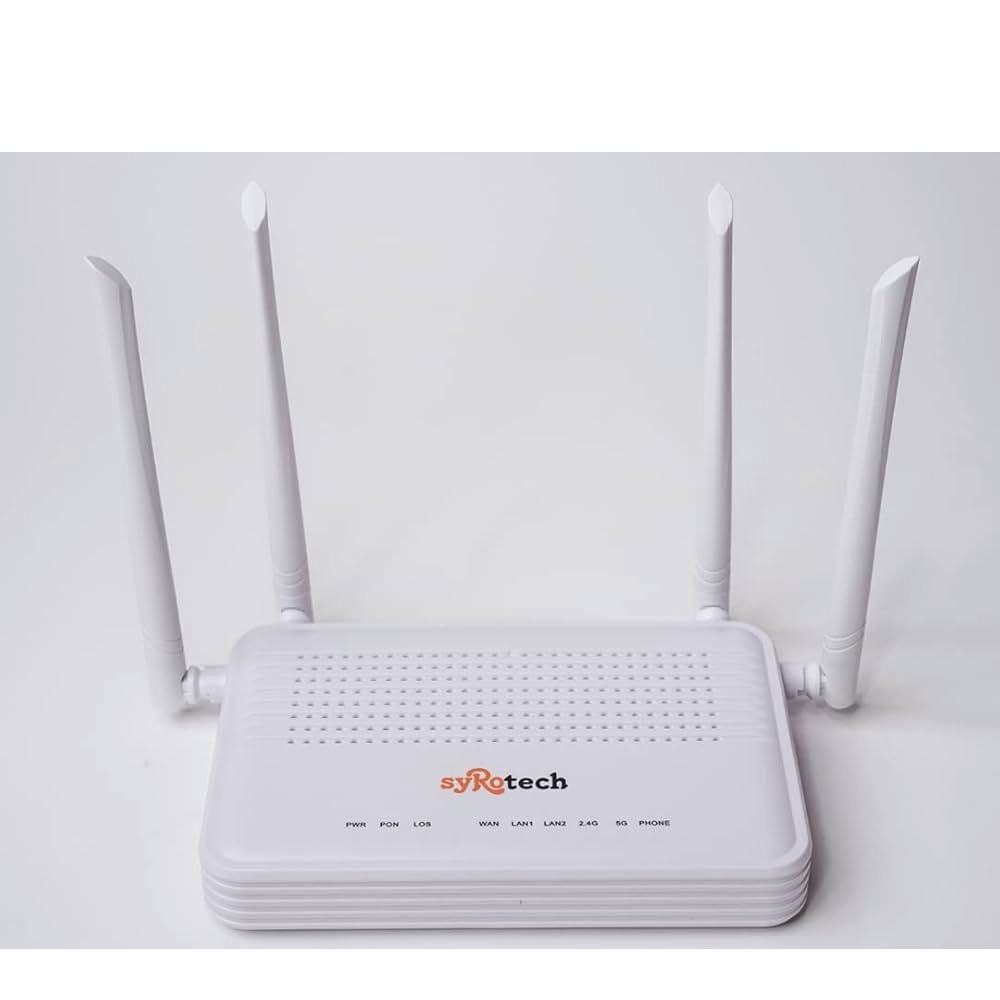
2010- WADONT Configuration for BSNL.
Details required for configuring ONT with BSNL ISP for Internet.
- VLAN ID
- PPPOE Username and Password
- ACS Url
- ACS Username
- ACS Password
Details required for configuring ONT with BSNL ISP for Voice.
- SIP Domain details
- Phone number
- Phone Password
2010- WADONT Internet Configuration: 2.4G and 5G WiFi
Step-1:
- Login the ONT using IP 192.168.1.1 default password as mentioned in ONT Label and change the default login password
- If you are connecting LAN for configuring the ONT, you can change default login password directly
- If you are connecting WiFi for configuring the ONT, you can connect Wifi using default password – 12345678.
Step-2:
- Login the ONT and go to the network and select Internet.
- Select add new WAN option in connection name row
- Select Mode as Route
- Select IP version as IPV4
- Select PPPOE for Internet
- Enable NAT Check Box should be ticked
- Enable VLAN checkbox should be ticked
- Enter VLAN ID IN VLAN ID Box
- Dont need to make any changes in 802.1p and MTU rows
- Enter username which is provided by your internet service provider( username and PPPOE username is same)
- Enter username which is provided by your internet service provider( Password and PPPOE Password is same)
- Keep service name is optional
- Select Continuous in PPP type
- Select TR069_ Internet as service mode
- Disable LAN DHCP checkbox should be unticked
- Bridge IGMP check box should be unticked
- Tick all box in port binding option
- Click apply
Step-3: - Login the ONT and go to the network and select TR069
- Enter ACS server URL provided by BSNL
- Enter Username as acs
- Enter Password as acs@bsnl
- Select No in enable certificate
- Enable yes in periodic report
- Enter 30 sec in periodic report interval
8.Get the details from ISP enter connection request username - Dont make any changes in connection request password.
2010- WADONT Voice Configuration: 2.4G and 5G WiFi
Step-1:
- Login the ONT and goto network and select internet
- select add new WAN option in connection name row
- Select mode as Route
- Select IP Version as IPV4
- Select DHCP for voice
- Enable NAT checkbox should be ticked
- Enable VLAN checkbox should be ticked
- Enter VLAN ID in VLAN id box
- Dont need to make any change in 802.1p and MTU rows
- Request DNS should be enabled
- Select VOIP as service mode
- Disable LAN DHP checkbox should be unticked
- Bridge IGMP checkbox should be unticked
- Click apply
STEP-2:
- Login the ONT and go to Application
- Click advance NAT and enable SIP
- Click VoIP
- Select server type as softswitch SIP
- Get SIP domain details from BSNL ISP
- Enter SIP domain details in primary register address
- Don’t modify port number
- Enter SIP Domain details in secondary SIP register address
- Don’t modify port number
- Go to primary SIP Proxy Row
- Enter SIP Domain details in proxy address
- Enable subscribe checkbox should be ticked
- Don’t modify port number
- Enable outbound proxy should be checked
- Enter SIP Domain details in outbound proxy address
- Don’t Modify port number
- Enter SIP Domain details in SIP domain
- Don’t modify time in register expire(sec)
- Leave secondary SIP Proxy Row as blank.
- Go to line1 account and enable checkbox should be ticked
- Enter phone number with std code which is provided from BSNL ISP in USER account row.
- .Enter phone number password provided by BSNL IP in user password row.
- Click apply changes
2.4 G Wi-Fi Configuration:
- Login the ONT
- Change wi fi name in SSID row as per requirement
- .select channel width as 40 MHz
- click apply changes
- Go to WLAN security
- dont modify WPA and WPA2 CIPER Suite
- change Wi-fi password in pre- shared key row as per your requirement.
- Apply changes
5G Wi-Fi Configuration:
- Login the ONT and go to network and select 5G
- Change wi fi name in SSID row as per requirement
- select channel width as 80 MHz
- click apply changes
- Go to WLAN security
- dont modify WPA and WPA2 CIPER Suite
- change Wi-fi password in pre- shared key row as per your requirement.
- Apply changes
Click here to access the tariffs: https://portal2.bsnl.in/myportal/FTTH_BROADBAND_COMBO for BSNL FTTH Plans